


nelna
Nelna Focus-On Timer | Visual Pomodoro Timer for Productivity & Study
Nelna Focus-On Timer | Visual Pomodoro Timer for Productivity & Study
Couldn't load pickup availability
See Your Time. Own Your Focus.
Make space for deep work, self-growth, workouts — or whatever your routine calls for. Designed in Korea — known for thoughtful, aesthetic desk essentials.
Key Features
-
See Time Pass in Color
A color disc shrinks as time passes, so you can see how much time is left at a glance — no need to check your phone. -
Whisper-Quiet Operation
No ticking, no distractions. It runs near-silently so you can stay in the zone. -
3-Level Alarm Volume (Silent / Low / Loud)
Silent for quiet spaces, low for a gentle reminder, and loud enough to hear over a workout or chores. -
2-Length Alarm Duration (3 sec / 30 sec)
A quick 3-second alert or a 30-second alarm when you need to be sure you catch it. -
Visual Light Alert
A blinking light backs up your alarm, so you won't miss it — even on silent mode. (3 blinks for the 3-second alarm, 10 for the 30-second one.) -
One-Touch Pause & Resume
Tap once to pause, tap again to resume right where you left off. -
Place It Anywhere
Built-in stand, magnetic back, and wall mount — place it anywhere your routine takes you. -
Compact & Lightweight
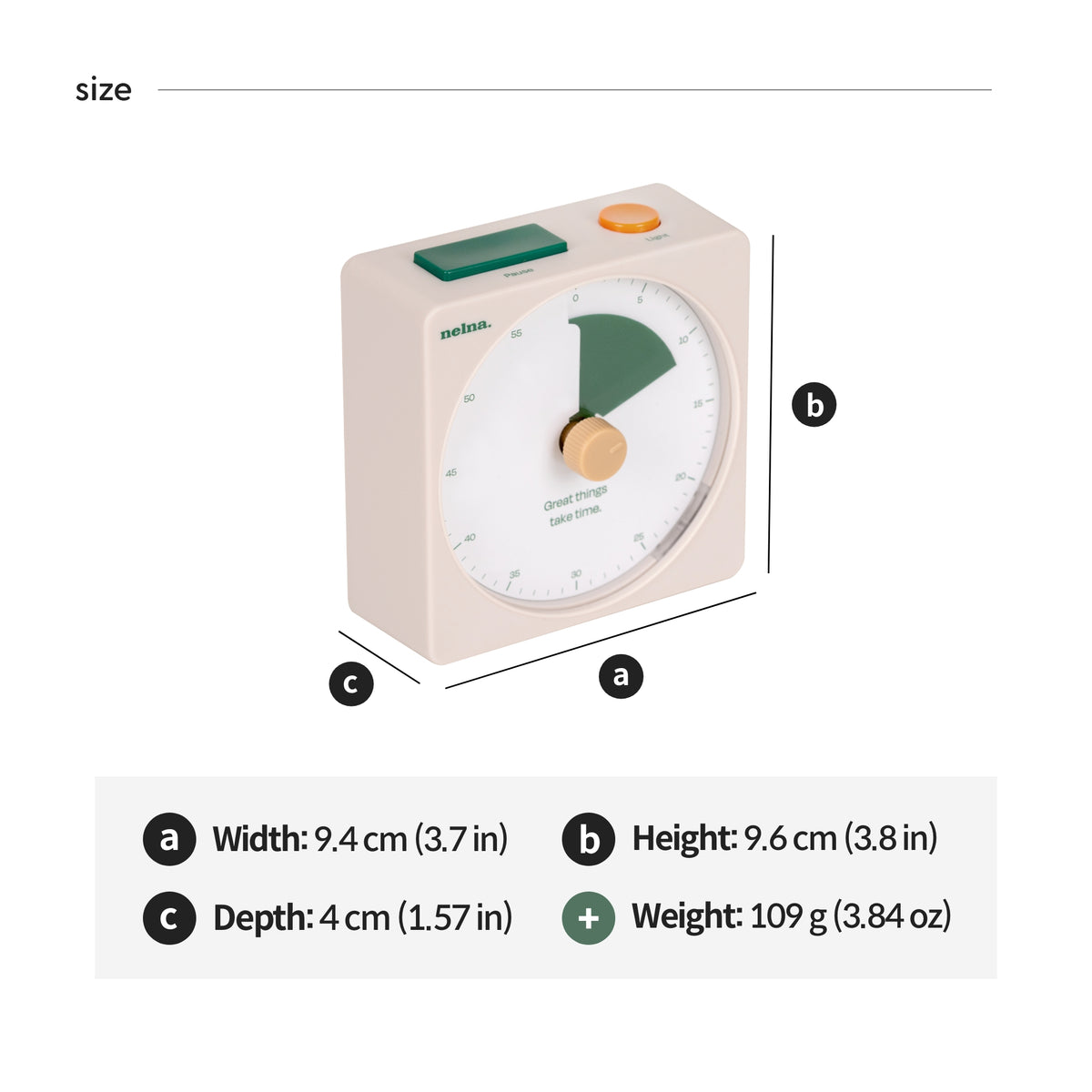
3.7" x 3.8" x 1.6" (9.4 x 9.6 x 4 cm), just 3.8 oz (109g) — light enough to toss in your bag.
Recommended For
- Reading & Deep Work — Stay immersed in a book or a project without watching the clock.
- Desk Work & Time Blocking — Break your day into focused chunks and stay on track.
- Daily Routines & To-Do Lists — Bring structure to everyday tasks, one timed session at a time.
- Libraries, Offices & Shared Spaces — Silent operation means you'll never disturb the people around you.
- Minimal Desk Decor & Thoughtful Gifts — A clean, aesthetic design that looks as good as it works — for yourself or someone else.
Please Note
- Battery & Power: Requires 2 AAA batteries (not included). If the timer beeps continuously, it indicates a low battery and requires replacement.
- Certifications: Fully certified for European safety, health, and environmental compliance (CE, RoHS).



check this
notice for all digital products
DESCRIPTION
· Intended for digital note apps with PDF support: GoodNotes, Notability, CollaNote, Noteshelf, Penly etc.
· This is NOT a physical item. A digital file will be downloadable right after purchase and as with digital items, no refunds or exchanges are accepted after download.
· All formats on Nelnashop can only be used by the customer for individual purposes, without resale in any way, shape, or form.
· Unauthorized copies, appropriation, and distribution are strictly prohibited.
RETURNS & EXCHANGES
· Due to the nature of digital downloads, no exchanges or refunds are possible after download.
· Please double-check the product/version/color before purchasing.
· This product can be used on Laptops and phones, but it is not recommended due to Hyperlink errors and small screen usability.
· Refunds for issues from non-Tablet devices are not accepted.
· Refund requests for individual opinions on design elements (color, font size) and page structure or change of heart are not accepted.
· Refunds or exchanges for cases where the customer does not fully and sufficiently read the instructions in the details page will not be accepted.
· Note apps such as GoodNotes, Notability, CollaNote, and Noteshelf are not included with this product and should be purchased separately.
· All formats marketed on NelnaShop are intellectual property under legal protection.
· Items are intended for individual use ONLY and cannot be resold in any shape or form.
· Unauthorized copies, appropriation, and distribution may be prosecuted by related laws.
FAQ
How to Download a Digital Planner
· For your better understanding, all instructions are based on GoodNotes app.
· Download the product through Safari - if not using Safari, there might be an error.
1. Purchase and download the product.
2. After download, click on Safari’s download list on the top right - hand side - Share - Open in GoodNotes.
3. Click Import as New Document.
4. Success!
How to add Sticker PNGs
1. Open GoodNotes and disable View Mode on the top right-hand side.
2. Click on the Image icon on the top menu.
3. Import the PNG sticker.
4. Click on the Image once again and click Cut.
5. Select Freehand.
6. Draw around the edges of the sticker you want.
· You can adjust the size of the Image with the arrows on the sides
HyperLinks
The hyperlinks will not work in Editing mode.